Google Shopping
feed optimization.
Check the title, image, price and stock behind each listing. Use this checklist to find feed errors before updating Merchant Center.
Creative production in QuickAds · Campaign launch in your ad account
What is Google Shopping feed optimization?
Google Shopping feed optimization means checking and correcting the product data you send to Merchant Center. Titles should describe the item, images should match the variant, and prices and stock should match the store. QuickAds can prepare catalog creative and exports. You still need to check Google's requirements, resolve Merchant Center issues and set up the campaign separately.
Describe the exact product and variant
Read one feed row without looking at the store. Can you identify the item and variant shown? Replace vague names with facts from the product record. Keep promotional wording out of fields intended to describe the item.
Name the item precisely
Include relevant attributes such as product type, brand, colour, material or size. Check the title against the same variant's landing page.
Keep variants distinct
Check each size or colour's image, price and destination. Supply the relevant variant attributes and group related items correctly.
Check identifiers at the source
Use identifiers from your product records or supplier. Investigate missing values instead of making up a number to fill the field.
Use a clean product image for Shopping
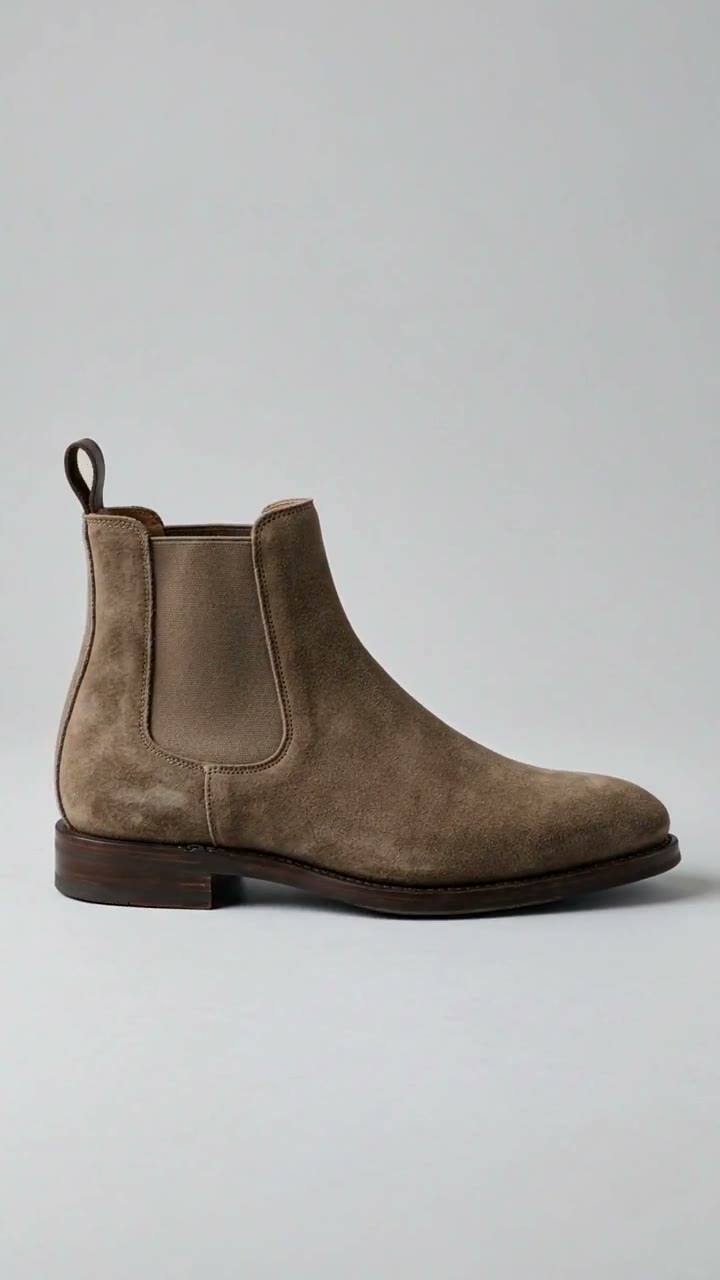
Google's main product-image rules exclude added prices, shipping offers, watermarks and superimposed logos. Keep a clean product image for Shopping. A branded social-ad design with an offer badge should not become the Shopping image by default.
Show what is included
Check the colour and components shown. The photo should make it apparent which item and included parts the shopper is buying.
Name the files by destination
Keep social designs and clean Shopping images separate. Check which image URL is assigned to each destination before submitting.
Open the image URL
Load the submitted URL. Confirm it shows the correct product and can be accessed outside your store admin.
Compare the feed with the storefront
Open product links, select the advertised variants and check what a customer sees. Include sale products and recently changed items. After submission, read the issues in Merchant Center: file acceptance does not confirm every product is ready.
Compare price and stock
Compare feed values with the product page and buying flow. Investigate differences before the affected products continue through the campaign.
Fix repeated errors together
When products share an error, inspect the common source field or mapping. Correct it, then check those items after reprocessing.
Record what changed
Record affected product IDs, edited fields and submission dates. Use them to trace errors and assess later campaign changes.
From a vague row to a specific product
Example data for a fictional store. Each change should describe the actual product and match its landing page.
| Field | Problem | Correction |
|---|---|---|
| Title | New bag | Aster canvas tote bag, olive, large |
| Image | Sale graphic reused for every colour | Clean photo of the olive tote |
| Price | Price copied before the sale | Current price for this variant |
| Availability | Stock status from an old export | Current stock status |
| Product link | Collection page | Matching product and variant page |
Your three-point check
Tick each item as you review your own catalog.
This checklist stays in this page session. It does not validate or change your feed.
Sources & further reading · Checked 2 November 2026
Common questions
Practical questions about google shopping feeds.
Can I put a sale badge on a Google Shopping product image?
Google prohibits promotional overlays on the main product image. Keep price badges, discount text and added promotional graphics out. Check current Merchant Center requirements before submitting.
Does a better feed guarantee more sales?
No. Correct data helps Google understand and display products. Sales also depend on demand, price, competition, the website and campaign. Compare results with a baseline; a feed edit may not explain every change.
Should I add every keyword to the product title?
Use terms that describe the item, such as type, material, colour or size. Remove terms that do not apply. A shopper should recognise the product from its title.
Will exporting from QuickAds fix all Merchant Center errors?
No. Check the source fields and product images against Google's requirements. Submit the feed, then inspect any issues Merchant Center reports after processing.
How often should I review the feed?
Review it when prices, stock, promotions or variants change. Assign someone to supply updated data and check affected items. A downloaded CSV stays unchanged until you update or replace it.