Catalog product video.
Show each product.
Create a clip for each selected product in QuickAds. Check the item, labels and offer throughout the video, then export the approved creative.
Creative production in QuickAds · Campaign launch in your ad account
What is catalog product video?
Catalog product video is a clip linked to a specific product in a catalog. Each item gets its own creative, while a brand or collection film can cover a broader range. QuickAds supports video and motion templates for catalog creative. Preview and approve the output, export the assets and feed, then finish the supported video setup in your advertising account.
Start with a batch you can inspect
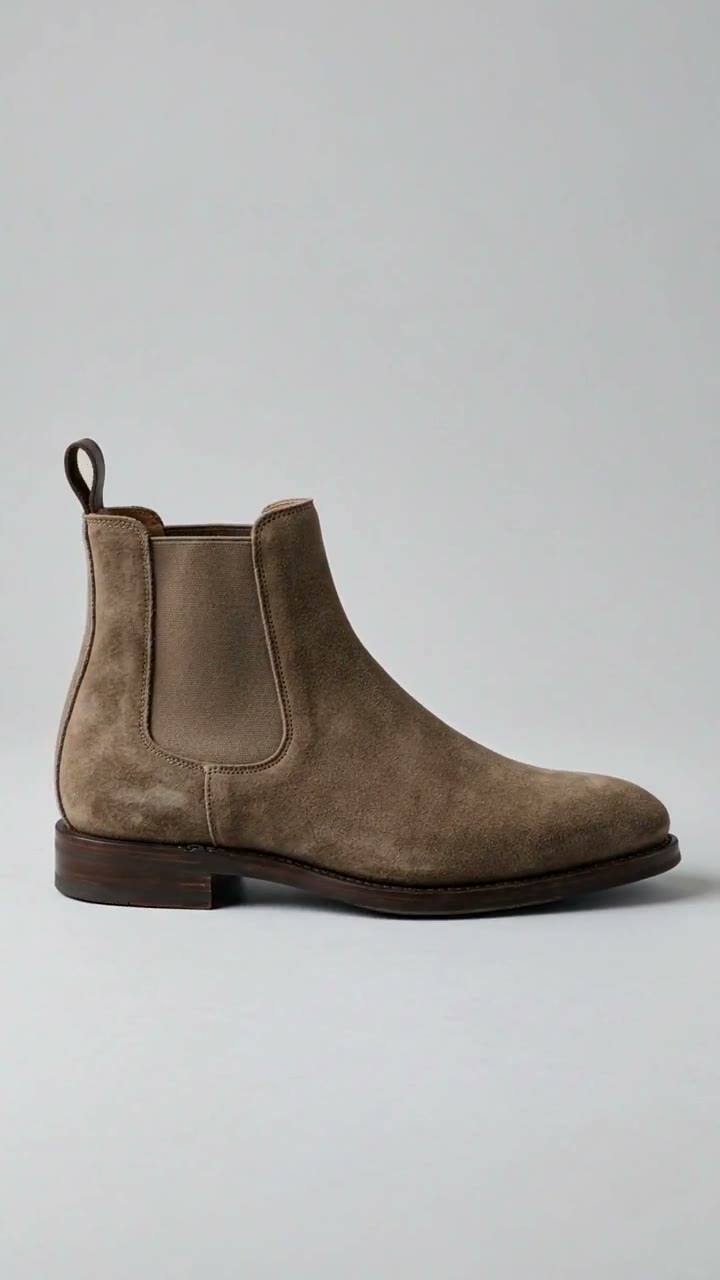
Choose a small set with different shapes, materials and image types. A footwear range might include a trainer, a tall boot and a sandal. Check whether the same video treatment preserves the details of each product.
Check the source photo
Inspect resolution, crop and product detail. Use an image of the actual item without missing edges or obscured features.
Avoid an immediate rework
Start with products whose packaging, price and availability are unlikely to change during the first test. Allow time to inspect creative and results.
Include the difficult shapes
Check thin straps, reflective surfaces and unusual outlines where they occur in your catalog. These products can expose problems with the treatment.
Check every frame against the real product
Watch the middle and ending as closely as the opening. Compare colour, construction and included parts with the source image. Pause where details change or become hard to read. Approve only clips that represent the item being sold.
Inspect edges and surfaces
Look for changing shapes, extra parts and altered textures. Revise any output that changes a feature of the product.
Read labels and packaging
Check brand marks, packaging text and added copy. Match claims to product information and make sure important words remain legible.
Choose the poster frame
Where supported, choose a poster or fallback image showing the correct product and accurately representing the clip.
Decide what the video is meant to show
Choose a reason for motion: show a detail, introduce a product or give a collection a consistent treatment. Compare the result with still images across a sample. Use campaign results to decide which items need more video.
Keep the comparison consistent
Use comparable products, offers and audiences for still and video ads. Record other campaign changes that could affect the results.
Check the product-to-video mapping
In Meta or TikTok, check format support and confirm each clip belongs to the correct item. Inspect the ad preview before launching.
Update offers inside the clip
When a promotion changes, check the feed and video. Updating a data field cannot remove an old offer from the clip.
Choose the asset for the job
A campaign can use a collection film, individual product clips and still images. Check each asset according to what it needs to communicate.
| Asset | What it shows | What to check |
|---|---|---|
| Brand or collection film | The story behind a brand or range | The story and featured products match the campaign |
| Product-level video | One catalog item | That exact product remains accurate throughout |
| Motion template | Product imagery, text or layout in motion | The item and message remain legible in every frame |
| Static product creative | A product in a still design | The crop and text leave the item recognisable |
| Poster or fallback image | The video when it is not playing | The frame represents the actual clip |
Your three-point check
Tick each item as you review your own catalog.
This checklist stays in this page session. It does not validate or change your feed.
Sources & further reading · Checked 2 November 2026
Common questions
Practical questions about catalog product video.
Is one hero video enough for a whole catalog?
A hero video can introduce the brand or range. It does not give every item its own clip. Map each product-level video to the item it represents and check the preview.
Do I need existing footage for every product?
QuickAds offers video and motion workflows using product assets. The approach depends on your images and other material. Produce and inspect a sample before committing to the full range.
Will video always perform better than a still image?
No. Results depend on the product, creative, offer and campaign. Compare video with still creative across a sample, then assess purchases and cost before replacing images that work.
How do I prevent a product from looking different?
Use detailed source images and compare the full clip with the item. Check shape, material, colour, branding and claims. Revise or reject output that changes what a shopper should expect to receive.
Does creating the video make it live?
No. Approve and export the QuickAds output, then add the assets to the destination catalog. Check format eligibility and product mapping, and launch through your advertising account.